

Floor Settings
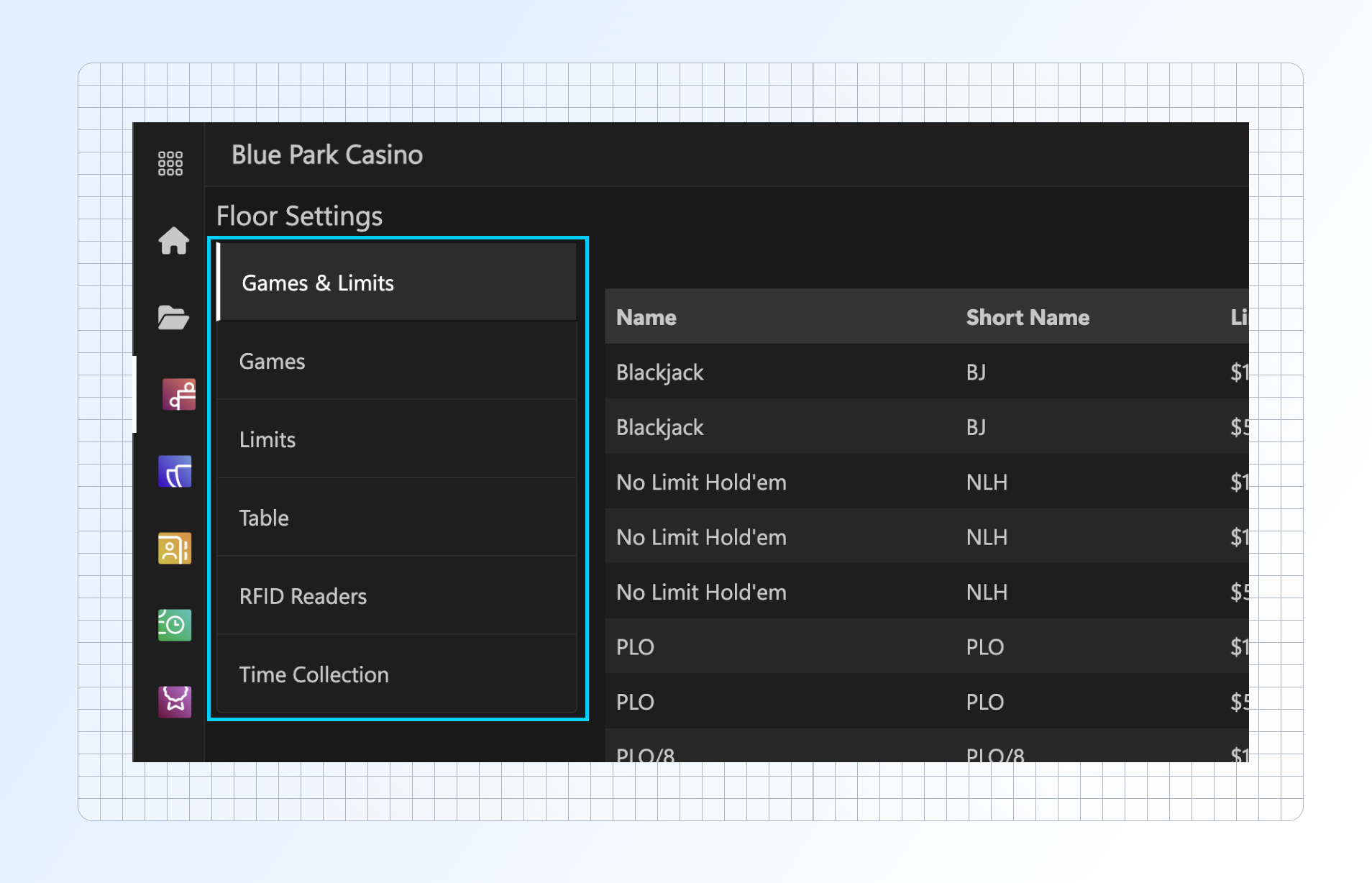
Floor Management - Floor Settings allows administrators to configure foundational table game operations including table assignments, game rules, collection settings, and RFID reader assignments. These settings power everything seen on the live floor and affect reporting, rotations, time collection, and game availability.
Do These Steps in Order for Best Results
Define Games
Manage the list of game types supported in your room (e.g., No Limit Hold'em, Blackjack, PLO). Each entry includes a short name, color theme, and optional "Backline" toggle for side or closed games.
What This Controls:
Game names displayed on tables and waitlists
Color coding across the platform
Backline options
Game types available for table assignment
Define Limits
Define blind limits and buy-in parameters for all cash games. Each limit includes:
Lower (small) & Upper Blinds (big) i.e., 1-2
Additional Blind (if applicable) i.e., 5-10-25
Min & Max Buy-in i.e., $100 - $300
Buy-in Modifier (optional display logic for your staff) i.e., Match a Stack
What This Controls:
Blind limits displayed on tables
Buy-in ranges for each game type that appears on waitlist display boards
Blind limit options available for game assignment
Configure Time Collection
Configure collection models for digital collection per hand-based games. Define per-player collection and optional pool contributions for up to 10 players per table. You can create and name multiple models to apply across games.
What This Controls:
Collection amounts charged to players
Variable rates based on player count at the table
Optional player pool contributions (promo pool, promo drop, etc.,)
Collection method (per hand or time-based)
Important: Setting up time collection is required if you're using digital collection to deduct/add points or credits to player cards or accounts. Players clocked into tables can have points/credits managed digitally even without RFID cards.
Configure Tables
View and edit all active tables in your room. Each table is linked to a specific game/limit combo, assigned seat count, dealer, and tournament capability. You can also toggle tables as "Going" or idle via the quick edit modal.

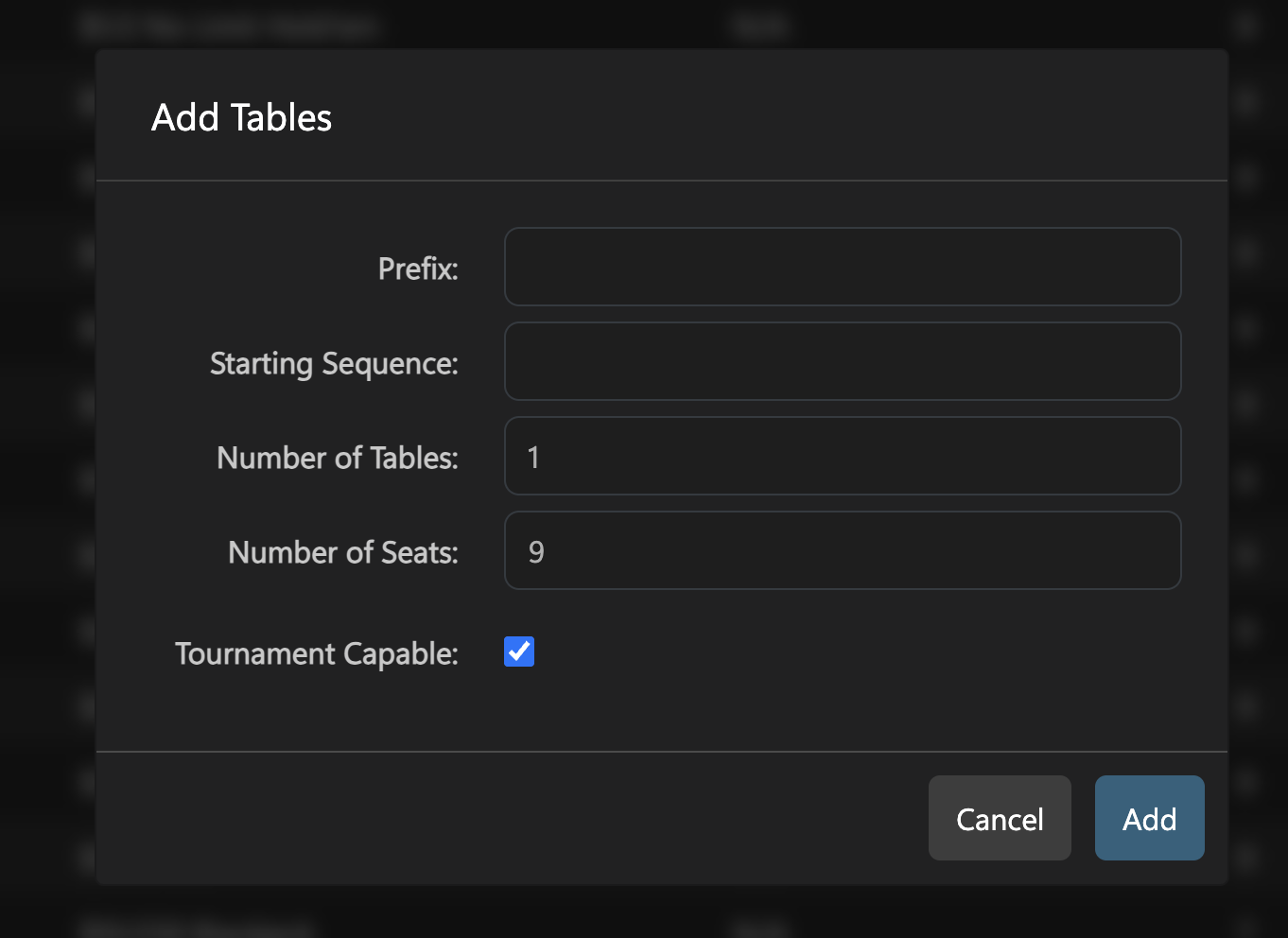
Add Tables
This screen is used to quickly generate table IDs in sequence. You can define the prefix, how many tables to create, the seat count per table, and whether the tables are tournament-enabled.
Fields Include:
Prefix: Sets the name format (e.g., "PK" for Poker, resulting in PK1, PK2, etc.)
Starting Sequence: Choose where your table numbering begins.
Number of Tables: How many tables to generate at once.
Number of Seats: Number of seats per table
Tournament Capable: Enables the table for use in tournament management modules.
Tables created here populate across your floor settings, waitlist, rotation, and tournament management features.
Configure Games & Limits
A consolidated view of all configured games tied to available limits, points, and time collection models. This mapping determines which combinations are valid for assigning to tables.

Add Game & Limit
Create a valid playable configuration by pairing an approved game (e.g., NLH, PLO) with a predefined limit (e.g., $1/$2). This screen also links the game/limit combo to a Time Collection model (used for billing) and sets the Earned Points/Hour for point based promotional accruals.
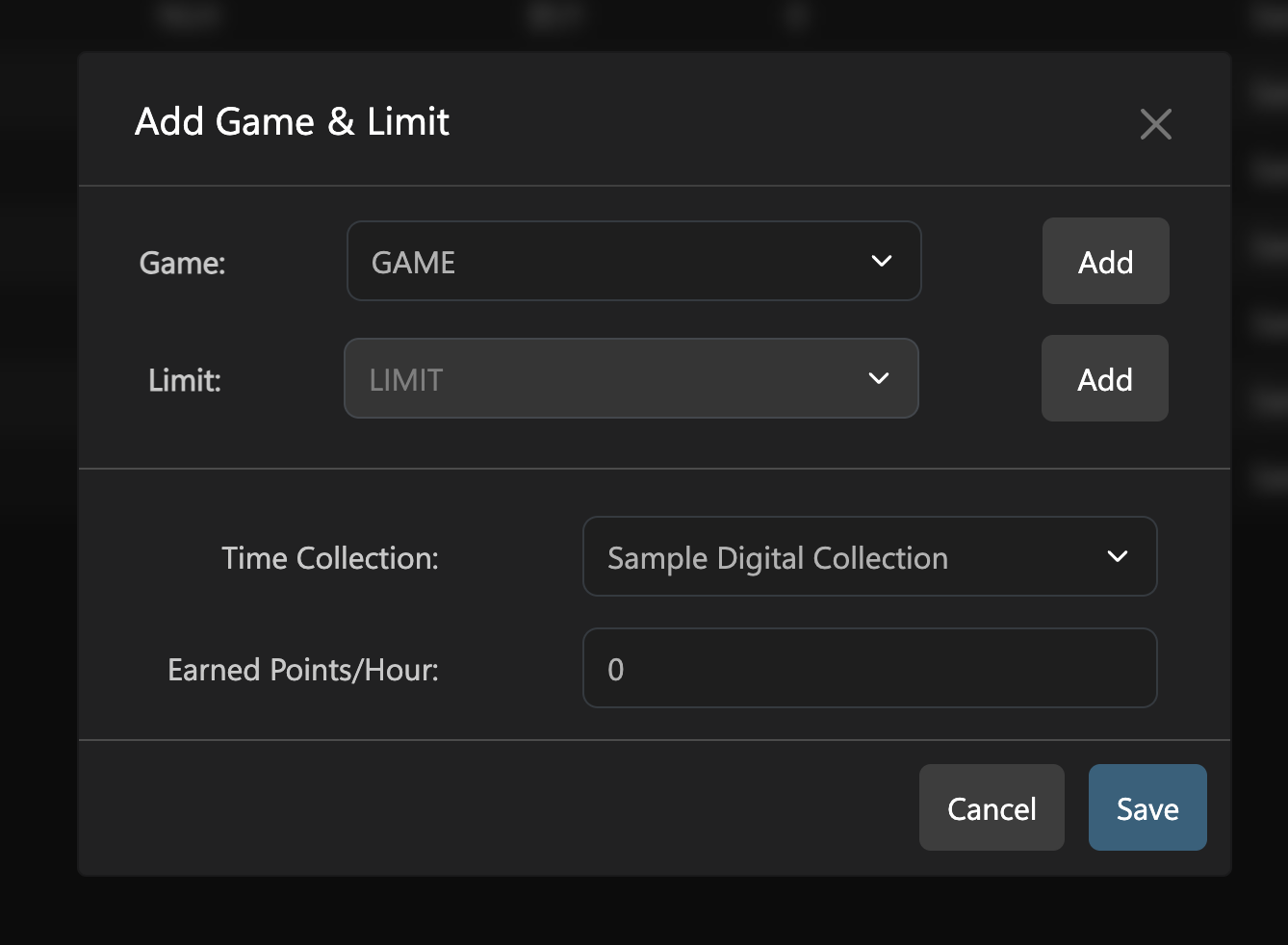
Fields Include:
Game: Select a previously created game.
Limit: Select a previously created limit.
Time Collection: Assign a predefined digital collection model.
Earned Points/Hour: Define how many promo points per hour this game earns. Leave at "0" if no point based promotions are set up.
This completes the full definition of what powers each seat on the floor.
Critical Step: Games and limits must be paired and then assigned to tables for proper operation. This assignment controls what games can be played at each table and how collection works. Define blind limits and buy-in parameters for all cash games. Each limit includes:
Lower (small blind) & Upper Blinds (big blind)
Additional Blind (if applicable) i.e., 2/5/10
Min & Max Buy-in i.e., $100-300
Buy-in Modifier (optional display logic for your staff) i.e., Match a Stack
What This Controls:
Blind limits displayed on tables
Buy-in ranges for each game
Limit options available for game assignment
RFID Readers (Optional)
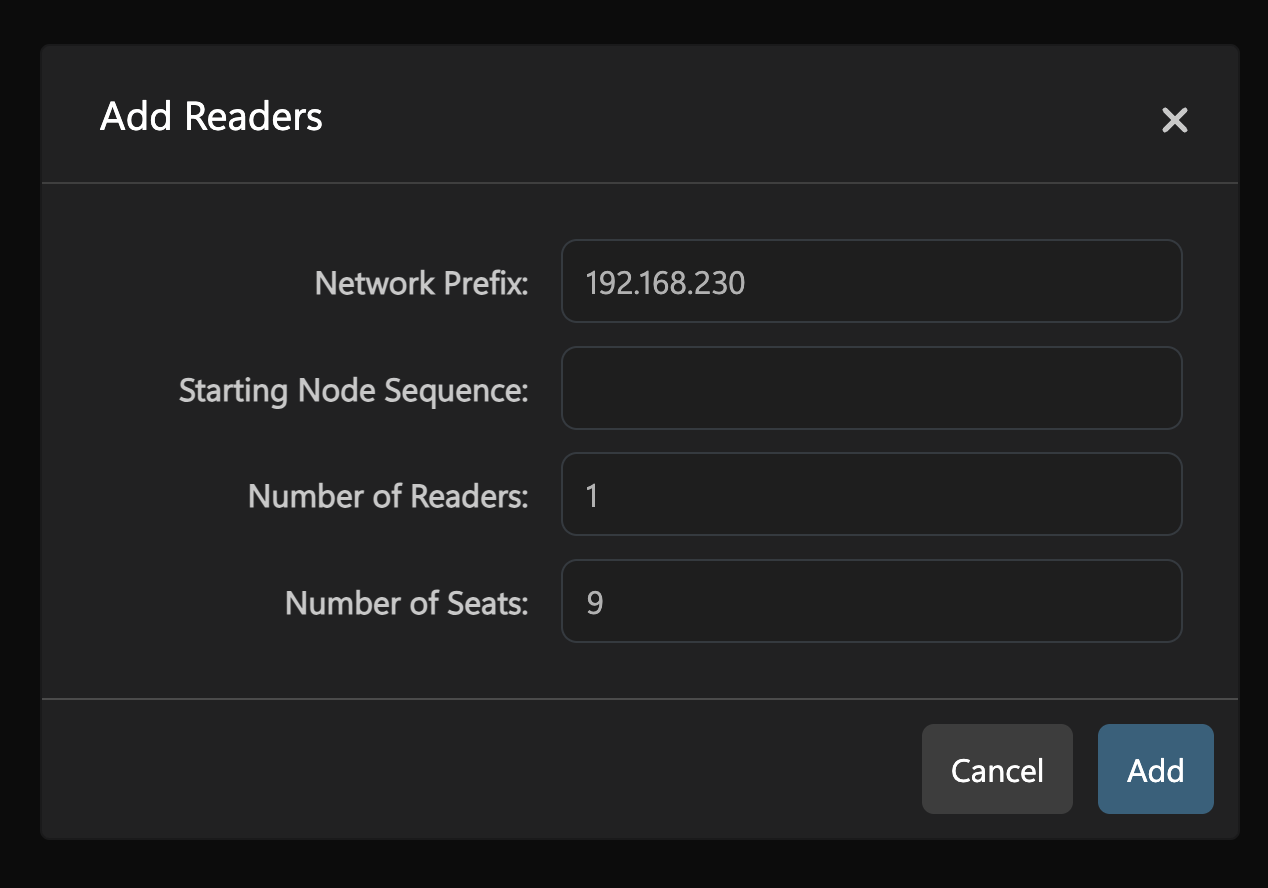
Assign RFID readers to specific tables using a network prefix, node sequence, and antenna configuration. This screen manages the IP assignments and reader count per table. You can also edit or remove assignments.
What This Controls:
Chip tracking for each table (with RFID compatible chips)
Pot size monitoring (with RFID compatible chips)
Integration with floor displays
Common Issues & Troubleshooting
Tables not showing in waitlist?
Check that tables are assigned to a game & limit in the table settings
Verify game/limit combination is properly configured
Tables will show as "Free" (no dealer, no players), "Deadspread" (has dealer, no players), "Going" (has dealer, has players)
Collection not working properly?
Confirm time collection model is assigned to the game/limit
Verify collection rates are set for the correct player counts
Can't add a new game type?
Games must be created before limits can be assigned
Each game requires a unique name and color code
Need to change table configuration mid-shift? You can modify table settings on the fly—changes take effect immediately for new games.
Last updated
Was this helpful?