

Global Settings

Global Settings (Section Configuration)
Required for Multi-Section Use, Dealer Coordinator, Count Room Collection, and Revenue Reporting
Global Settings help organize your floor into logical groups and reporting areas. These settings determine how tables are grouped, how shifts are managed, and how your reporting is structured.
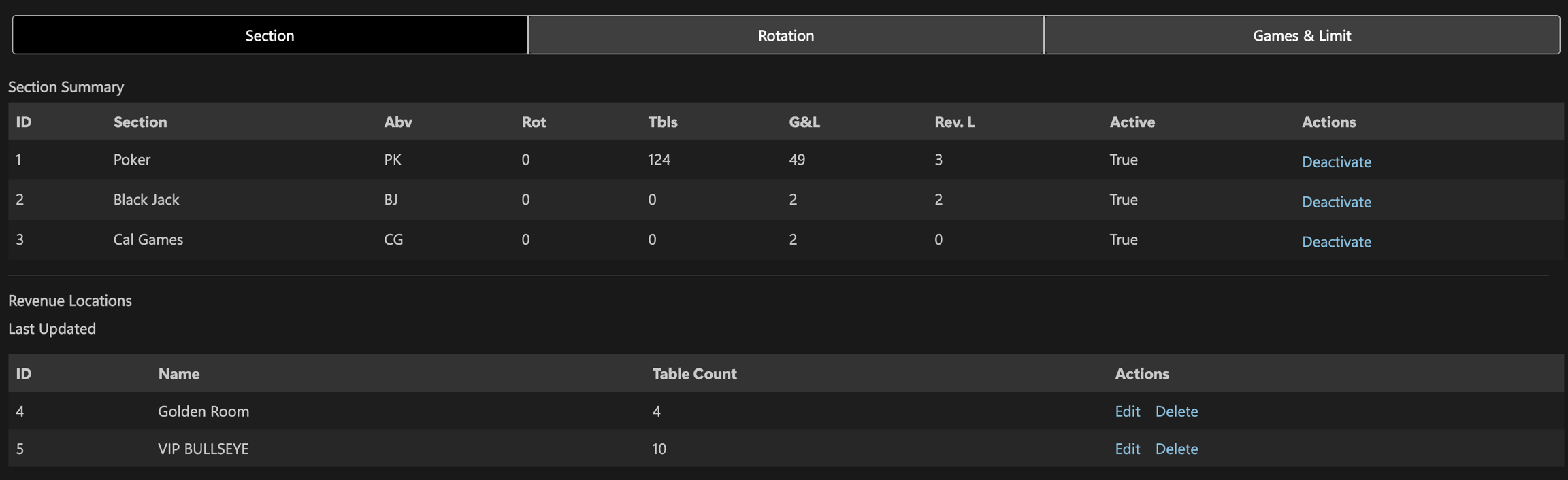
Sections & Revenue Locations
What It Does: Organizes your tables into operational and financial groups for better management and reporting.
Why It Matters: Proper section configuration improves floor management, financial tracking, and shift-level collection accuracy.
Who It's For: Room managers and administrators responsible for floor organization and financial reporting.
Section Settings
Sections help organize your floor by game type (Poker, Blackjack, etc.). Each section can contain multiple tables and game types.
Configuration Fields:
Section: The name of the group (e.g., "Poker")
Abv: Short code for the section (e.g., "PK")
Tbls: How many tables are assigned to this section
G&L: Number of Game & Limit combinations in this section
Rev. L: Number of Revenue Locations inside this section
Active: Shows if this section is currently active or turned off
To add or edit a section:
Navigate to Global Settings → Section Settings
Click "Edit" next to the section name or "Add Section" for a new one
Fill in the section name and abbreviation
Save changes
Revenue Locations
Revenue Locations are sub-groups of tables within a section used for financial reporting and shift-level collection purposes.
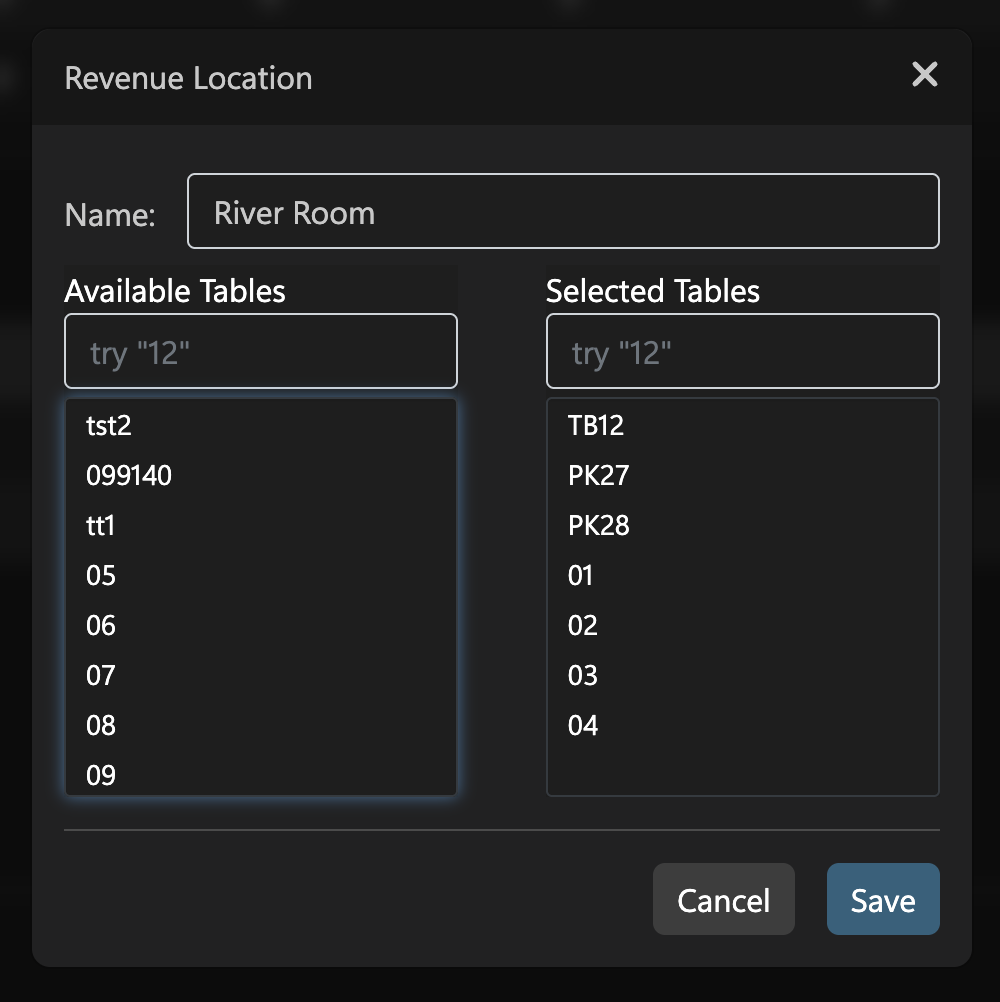
Example Structure:
Section: Poker (20 tables total)
Revenue Location: Front Pit (Tables 1-8)
Revenue Location: Back Pit (Tables 9-16)
Revenue Location: Tournament Area (Tables 17-20)
To configure Revenue Locations:
Navigate to Global Settings → Section Settings
Click into the section you want to configure
Select "Add Revenue Location"
Name the area (e.g., "Back Pit," "Front Poker")
Use the Table Picker to drag tables from the Available list to the Selected list
Save changes
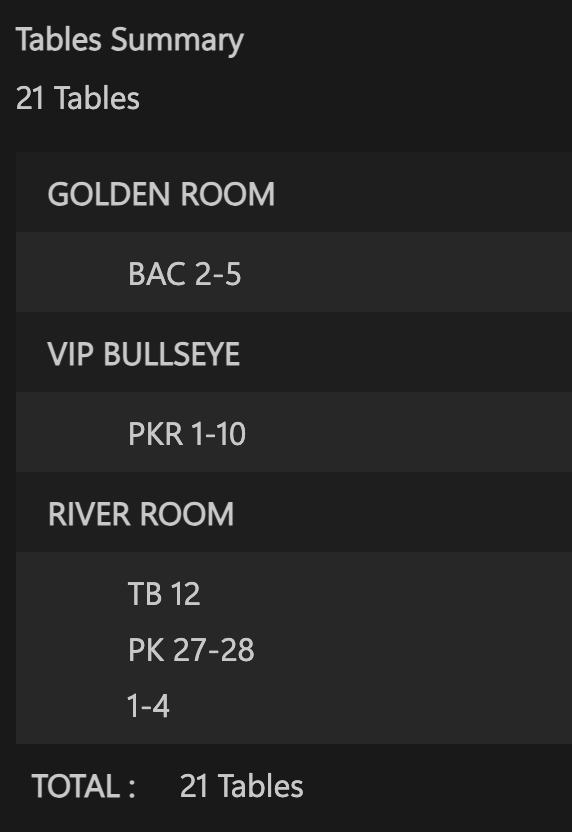
Benefits:
Track drop and revenue by pit or zone
Assign collection pulls by area
Improve internal financial accuracy
Organize large floors into manageable sections
Schedule Settings
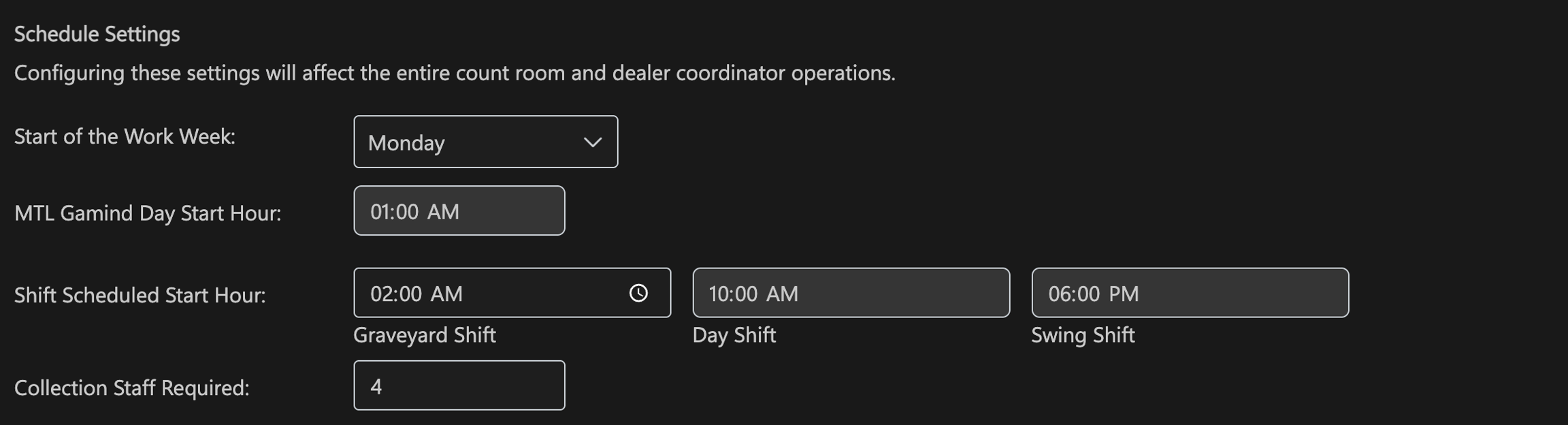
What It Does: Controls your dealer coordinator, count room, and shift tracking across the room.
Why It Matters: Proper schedule configuration ensures accurate labor tracking, shift assignments, and financial reporting periods.
Configuration Fields:
Start of the Work Week: Choose which day your club's week starts on for reports and scheduling
MTL Gaming Day Start Hour: When your gaming day begins (used for Title 31 and MTL tracking)
Shift Scheduled Start Hour: Set the start times for each shift (Graveyard, Day, and Swing)
Collection Staff Required: How many staff are needed each shift to handle table collection duties
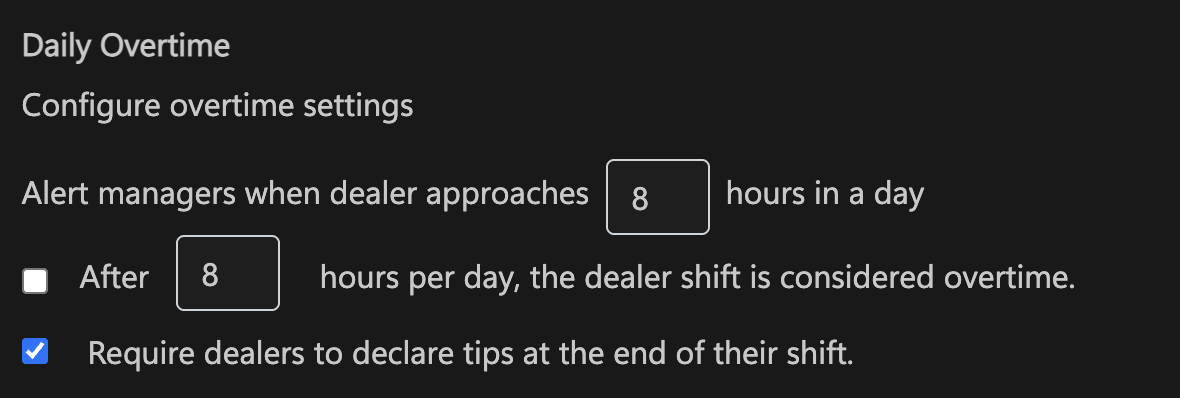
Daily Overtime Settings
What It Does: Monitors dealer hours and enforces labor rules or internal policies.
Why It Matters: Helps maintain labor compliance and provides oversight for dealer scheduling.
Configuration Fields:
Alert managers when dealer approaches [X] hours: Sends a warning when a dealer is getting close to their daily hour limit
After [X] hours per day = overtime: If enabled, marks anything above this hour count as overtime for reporting
Require dealers to declare tips: Makes it mandatory for dealers to enter tips at the end of their shift
Dealer Tracking - Break Rules

What It Does: Defines how often dealers should take breaks and whether those are paid or unpaid.
Why It Matters: Ensures labor compliance and helps manage dealer rotations.
Configuration Options:
Paid Break: Define how long and how often paid breaks occur (e.g., 15 min every 4 hrs)
Unpaid Break: Same as above, but for unpaid breaks
Collection Settings

What It Does: Schedules box pull times per section for casino-style setups or rooms running multiple shifts.
Why It Matters: Maintains accurate financial recording and ensures proper revenue attribution by shift and day.
Configuration Fields:
Box Pull Hour: Time each day the boxes are collected for that section
Shift: Which shift this pull applies to
Type: Can apply to "All Boxes" or selected types
Rev. Day: Whether this pull counts toward today's or the previous day's revenue
Common Issues & Troubleshooting
Tables missing from revenue locations?
Check that tables are properly assigned to the correct section first
Verify the table is active in the Floor Settings
Shifts not tracking properly?
Confirm shift start hours are properly configured in Schedule Settings
Check that the MTL Gaming Day Start Hour aligns with your operation
Collection pulls not showing in reports?
Verify Revenue Locations are properly configured
Check that Collection Settings have the correct box pull hours defined
Best Practices
Match Physical Layout: Configure your sections and revenue locations to match your physical floor layout
Use Clear Names: Choose section and revenue location names that make sense to your staff
Group Similar Tables: Keep similar game types and stakes in the same section when possible
Review Regularly: Update your section configurations when your floor layout changes
Last updated
Was this helpful?